A simple lab today. We will reset a user password from the Microsoft 365 Admin console.
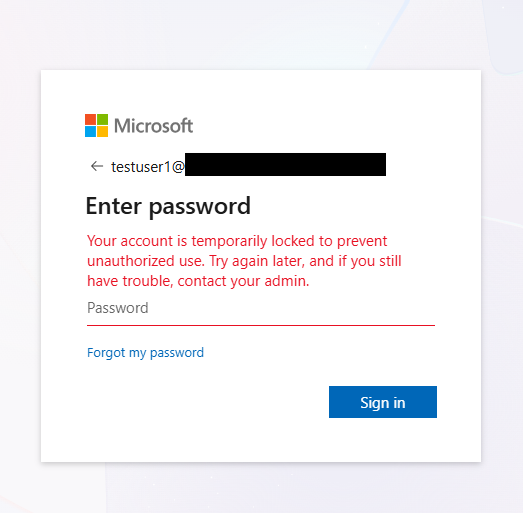
First, your user will submit a ticket stating that they forgot their password and they will have seen something like the following:
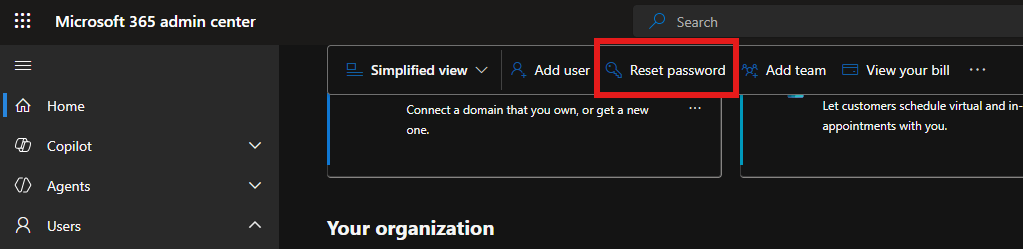
We will verify the user’s ID following company protocols to avoid a social engineering attack. Once the user’s ID is verified you can begin the password reset. From the Admin console it is as simple as finding the Reset Password button. There are multiple ways to accomplish this task but this button is the most readily available as it is on the Home screen of the console.
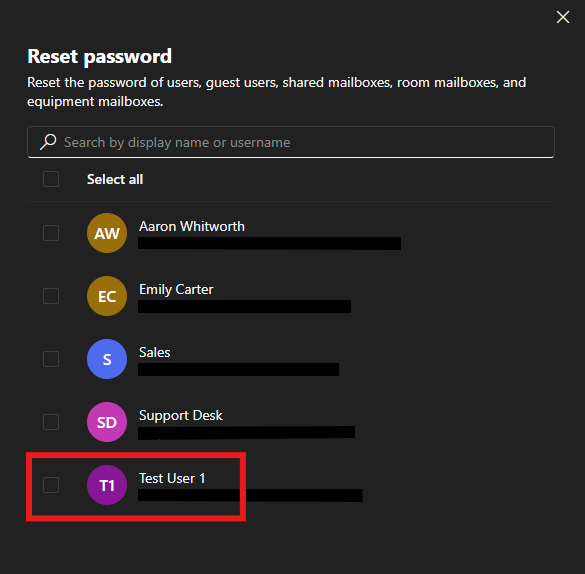
A Reset password menu will pop up where you will the select the user that you want to reset the password for. Choose the user then click Select.
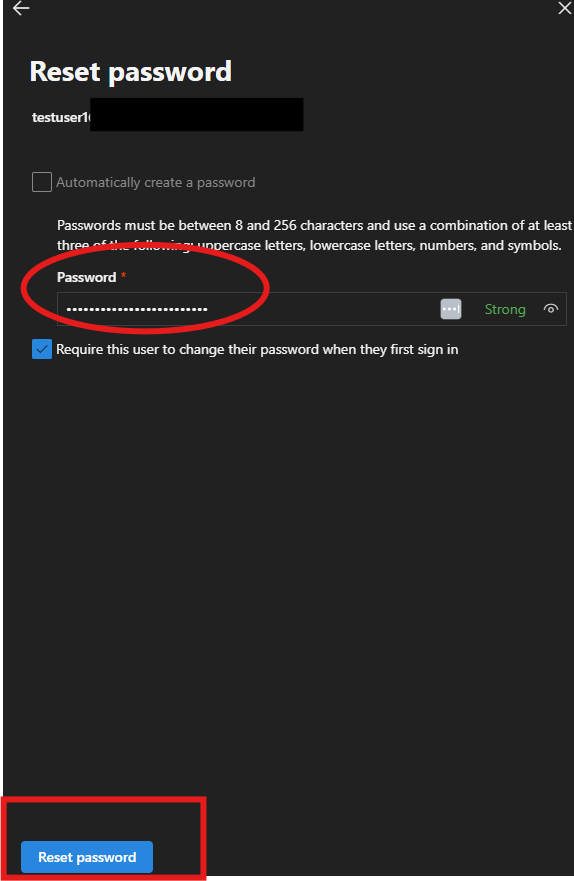
Then type in a new, temporary password for the user. Make sure to select Require this user to change their password when they first sign in. This ensures that they do not keep the temporary password and that only they know their password. Click Reset password. Let the user know the temporary password securely following your company’s policies.
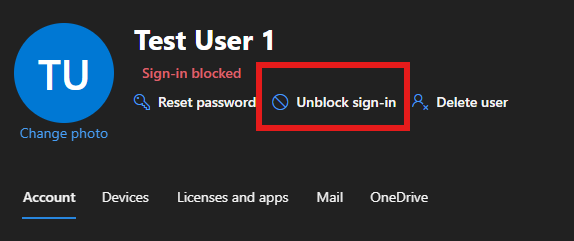
Then, if the user is blocked from signing in, from the Home screen select the user and click unblock sign-in.
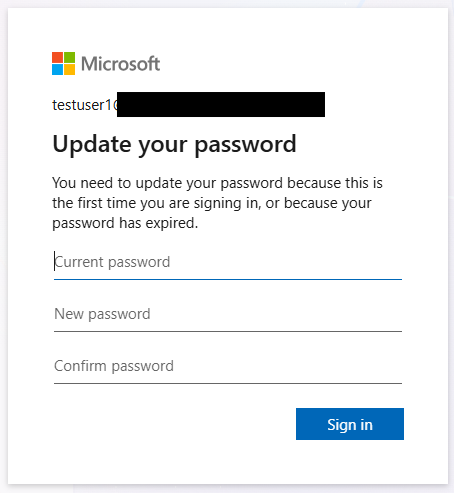
When the user signs in they should be prompted to type in a new password.
Now, new versions of Entra ID allow users to reset their passwords without any help desk intervention but I don’t have that tier so it’s done the old fashioned way. That is how we reset a user’s password.