Today we are looking at a common Tier 1 Help Desk Ticket.
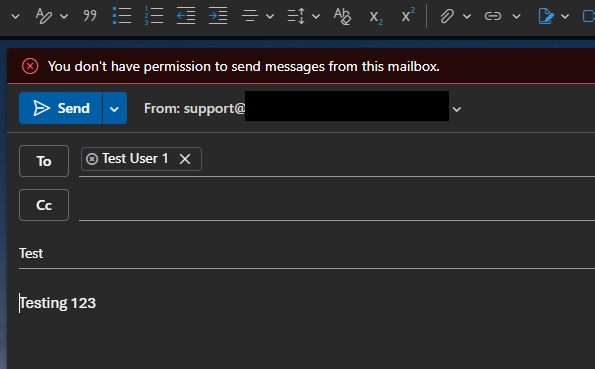
The ticket would come in something like this, “I have access to a shared mailbox, I can see the mailbox and read the emails but I cannot send mail from the box.”
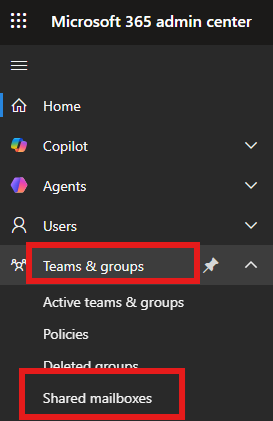
We are going to look at a possible solution to this issue. We start in the Microsoft 365 Admin Center. On the left hand panel look for Teams & groups, expand that menu, find Shared mailboxes and click on it.
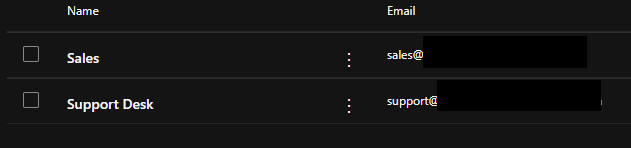
Then select your shared mailbox, here Support Desk.
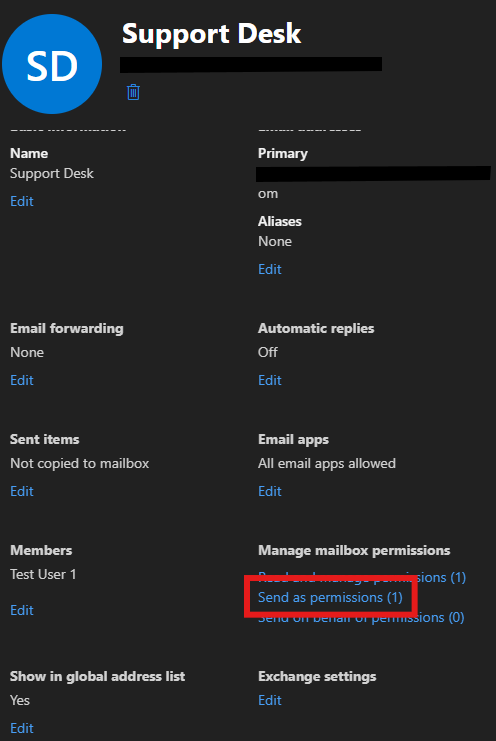
Then find and click Send as permissions.
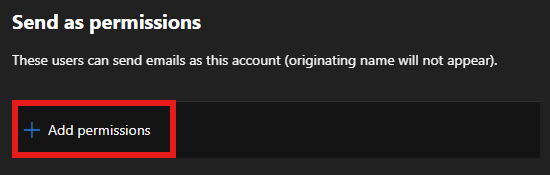
Then click Add permissions.
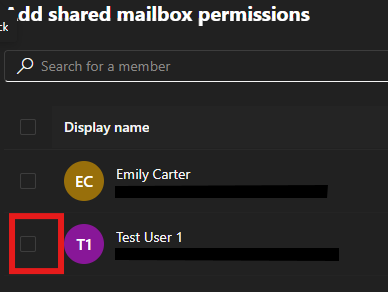
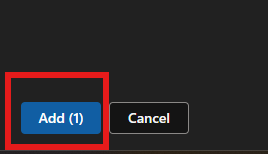
Then select the user or users you want to give permission to and click Add.
This should take care of the permission issue. Be aware, however, that this may not take effect immediately. Sometimes there is a propagation delay or the user is still operating on a cached token.
Eventually the user will be able to send an email from the shared mailbox.
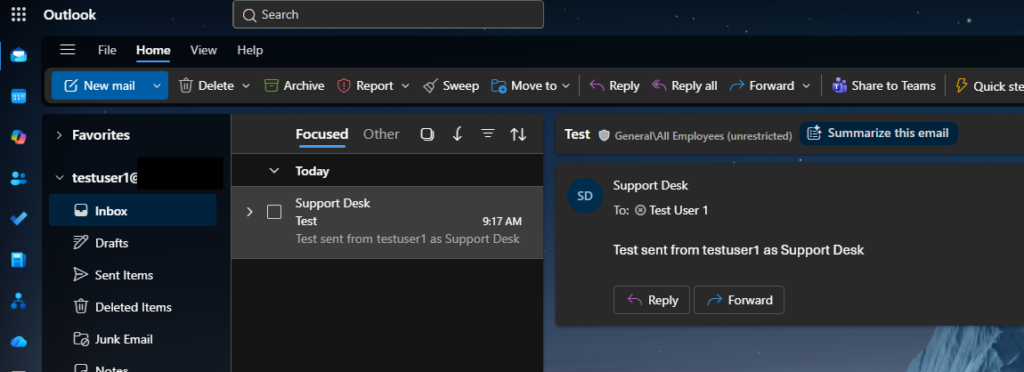
We learned a possible fix for a user no being able to send an email from a share mailbox they have access too.