
Add A User
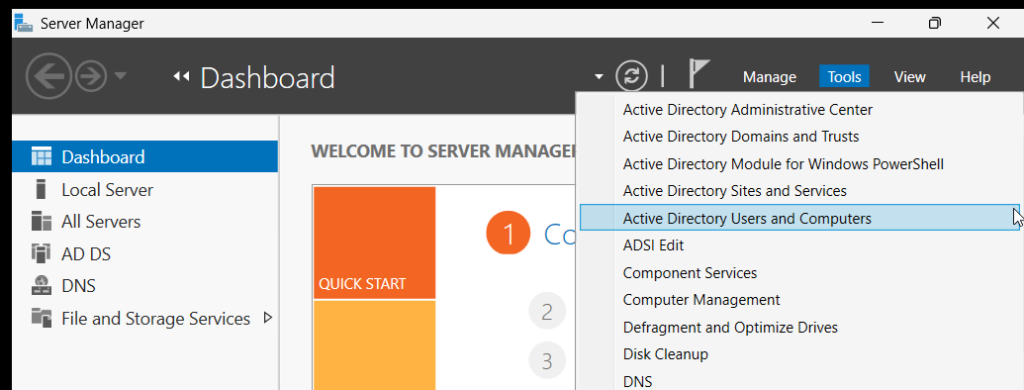
Today we are going to learn to add Organizational Units (OUs), users, and groups on our Domain Controller. This is in a lab environment that contains the DC and one domain-joined computer. The first step is to open Server Manager and find Active Directory Users and Computers.
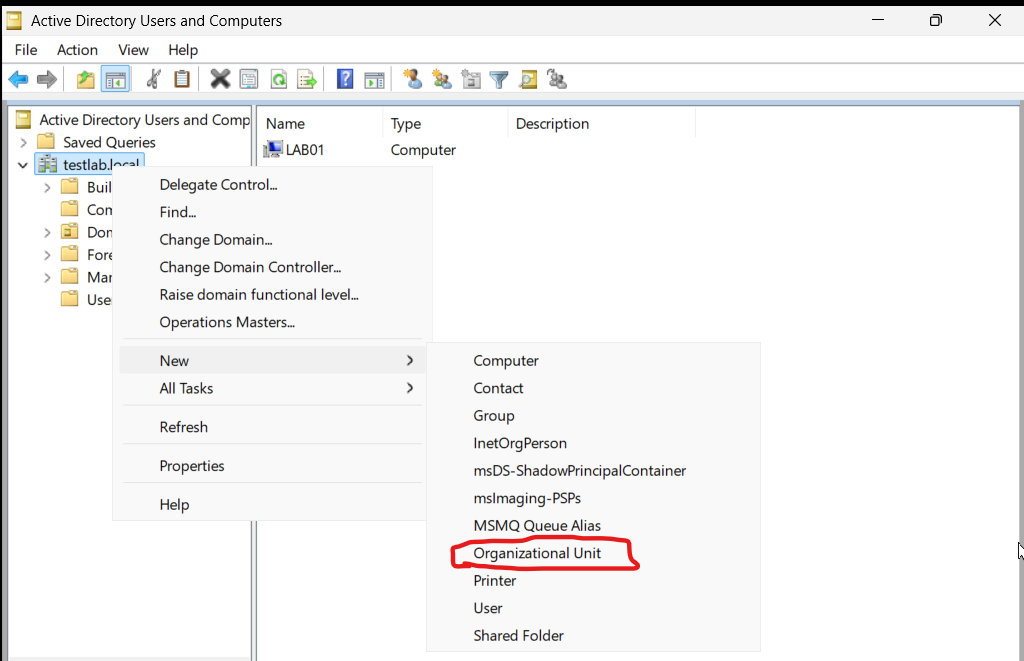
Then we will create one or more Organizational Units. Right click your domain, find New, then click Organizational Unit.
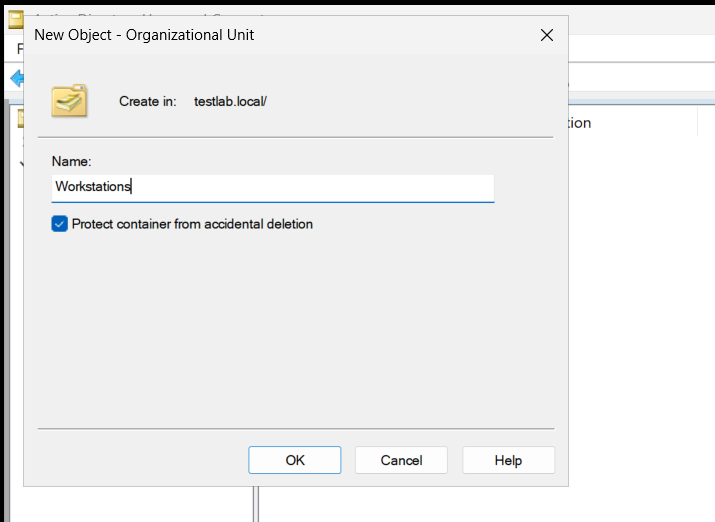
Then you just name your OU and you can, but don’t have to, check “Protect container from accidental deletion”. I think it is good practice to leave this box checked. Then click OK.
What is an OU? Well according to Microsoft learn, “Organizational units (OUs) in an Active Directory Domain Services (AD DS) managed domain let you logically group objects such as user accounts, service accounts, or computer accounts. You can then assign administrators to specific OUs, and apply group policy to enforce targeted configuration settings.” OUs allow an administrator to apply Group Policy Objects, which allow admins to set security settings and configurations, to the OU and allow easier navigation of the enterprise structure. For example, if you are looking to change an attribute of an employee that works in Phoenix in HR you can navigate to the Phoenix OU then the HR OU and find the employee there.
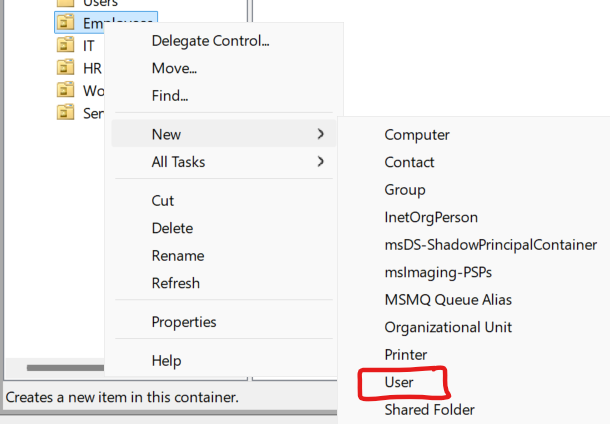
Next we can create users in specific OUs, or if you have created users already you can move them into a specific OU. To move a user, find the user, right click on that user, select move, and choose the container you want to move the user into. To create a user, right click the OU, find New, select User.
Then fill in the form based on your company’s policies.
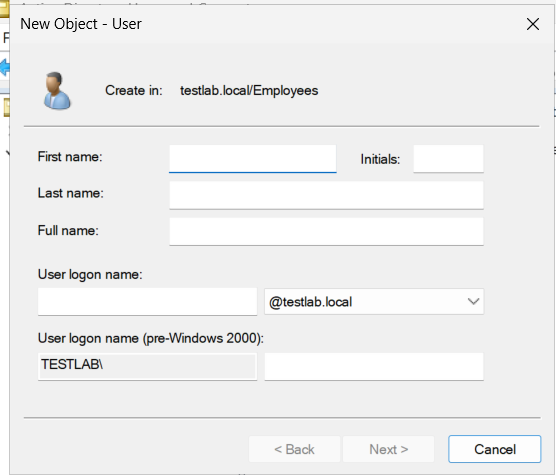
Then click finish. The user is created.
Now we will add the user to a security group. The security group will allow the administrator to assign access and permissions to the user based on the group or groups they are a member of.
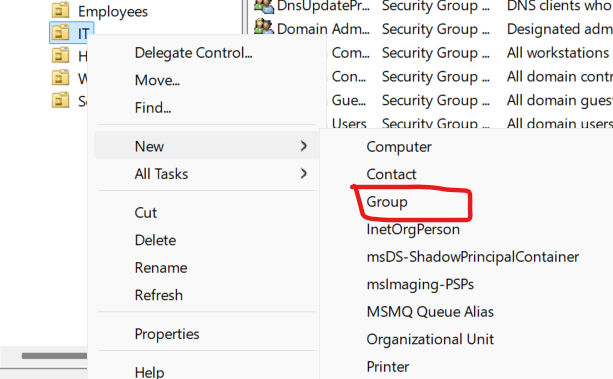
First we will create a group. Right click the OU you want the group to be in, find new, click Group.
Fill out the form. We are creating a Global Security group in this scenario. Then click OK.
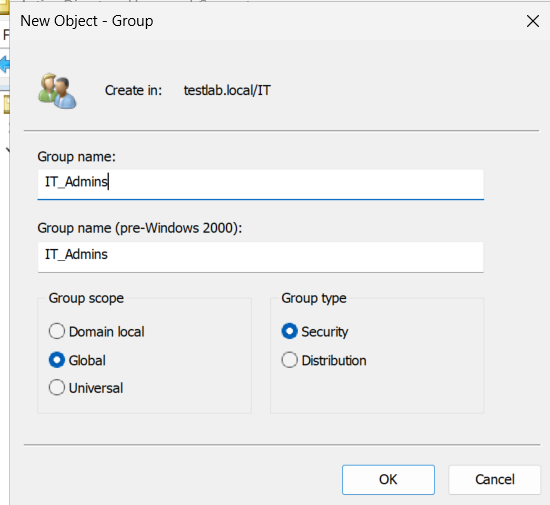
For group scope, Domain Local means that any member of that group can only be granted permissions to resources on that domain even if the member is from a different domain in the forest. Global means that the group can only have members that are part of the same domain the group is created on but those members can have permissions to anything in the forest. Universal means that the group can have members from any domain in the forest and permissions to any resource on any domain in the forest. For group type, Security groups allow the admin to apply permissions to resources. For example, members of a group could be granted or denied access to a file. Distribution groups are used for email communication.
Now we can add a user to a group. We find the user we want to add, right click on that user, click on properties. In the properties window find the Member Of tab and click it, then click add, then type in the name of the group you want to add the user to, click check names to verify it is correct, then click OK. You should see the group or groups the user is a member of in this tab.
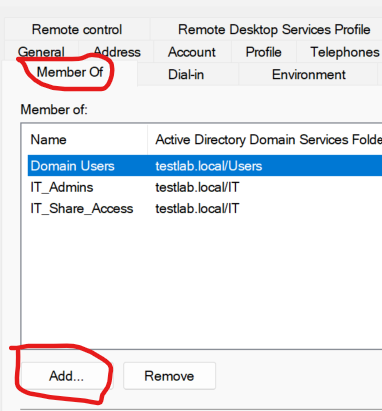
We created OUs, created users, created security groups, and added users to those security groups.