
We are going to create a share file then give a security group permission to access the file.
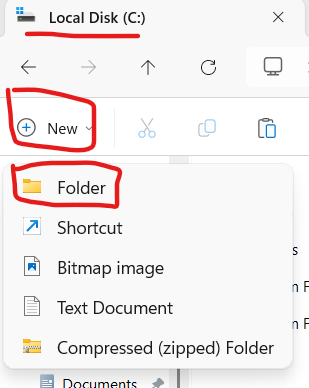
First we create the file on the Server. Open File Explorer, navigate to the C: drive, click New, then click Folder.
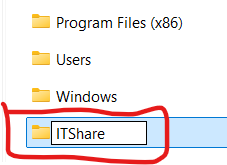
Then name the file.
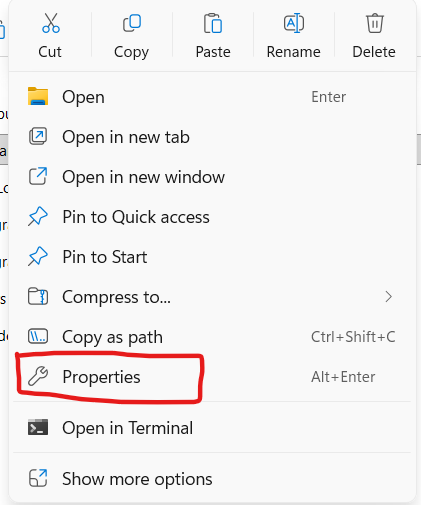
Then right click the file and click Properties.
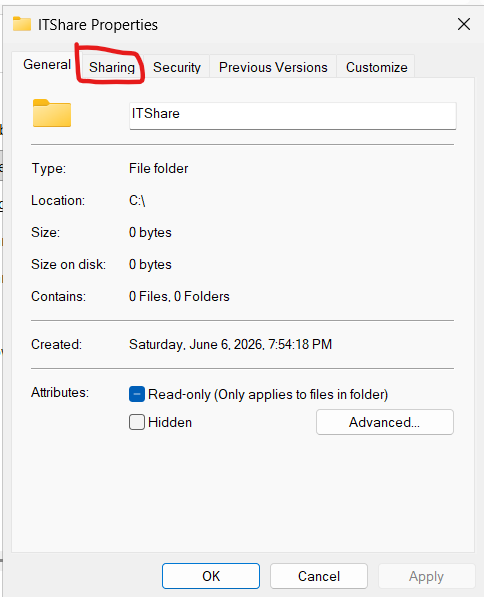
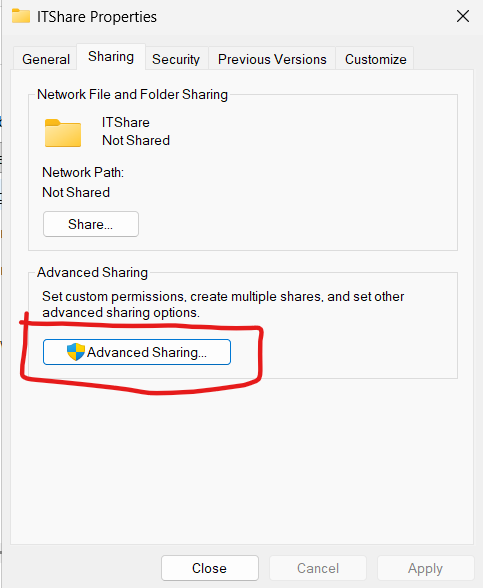
Find the Sharing tab and click it.
Click on Advanced Sharing.
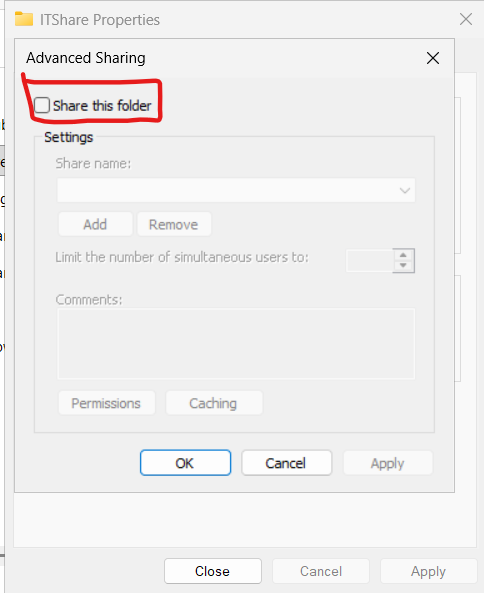
Check the “Share this folder” box. Then click OK.
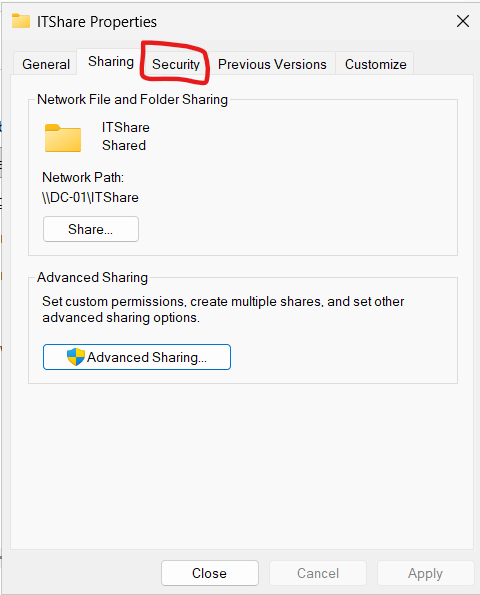
That will take you back to the Properties window. Here find the Security tab and click on it.
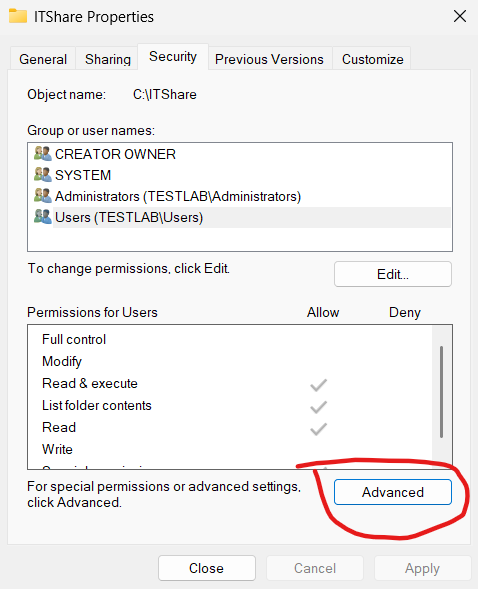
Then click Advanced.
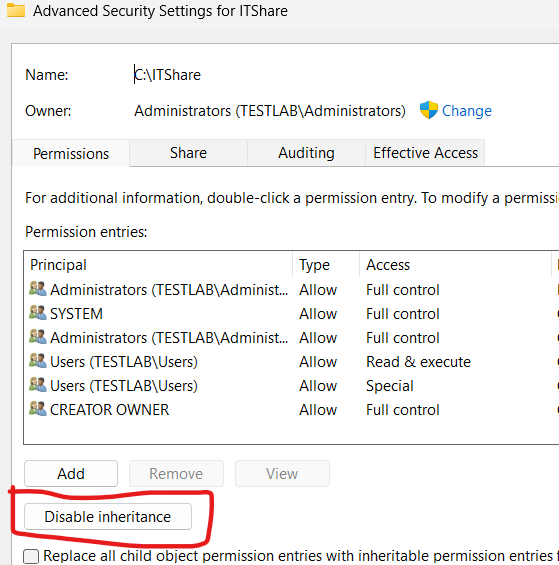
Then click disable inheritance. This ensures that permissions are not inherited from the parent folder. This share folder will have its own permissions.
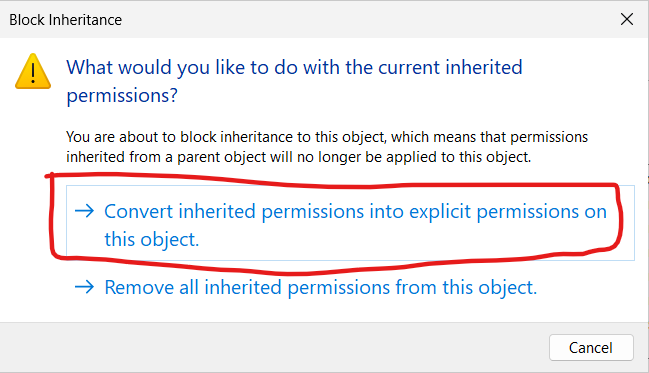
Then select convert inherited permissions into explicit permissions on this object.
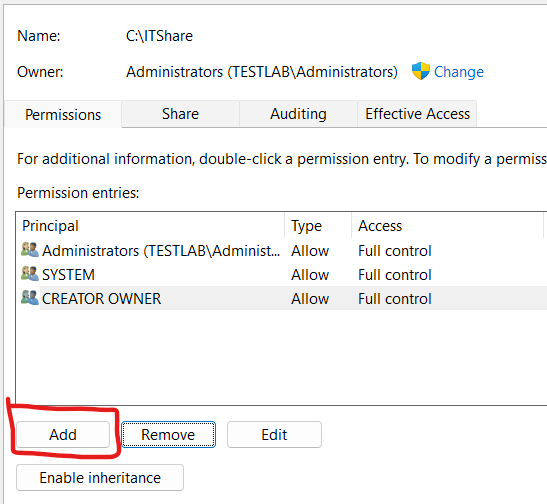
Then you can remove any user that you do not want to have permissions on this file and any child objects that are created inside this file.

Then add the users or groups you want to give permissions to. In this case a security group created earlier.
Click “Select a principal”.
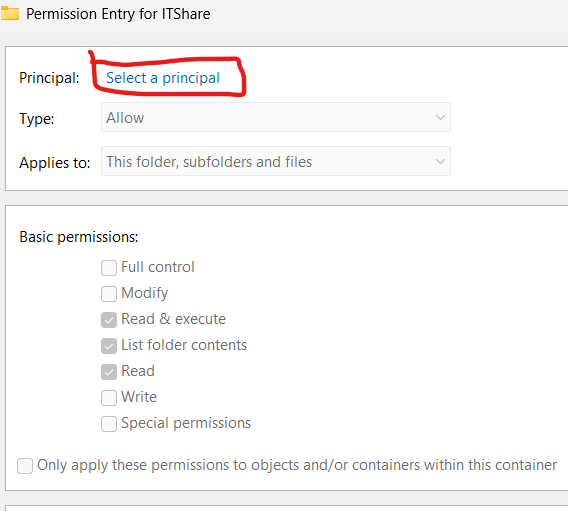
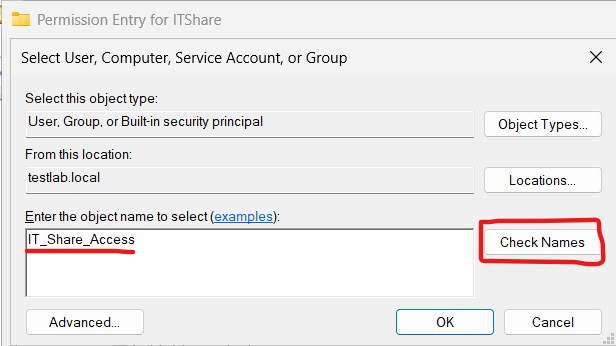
Type in the user or group and click check names.
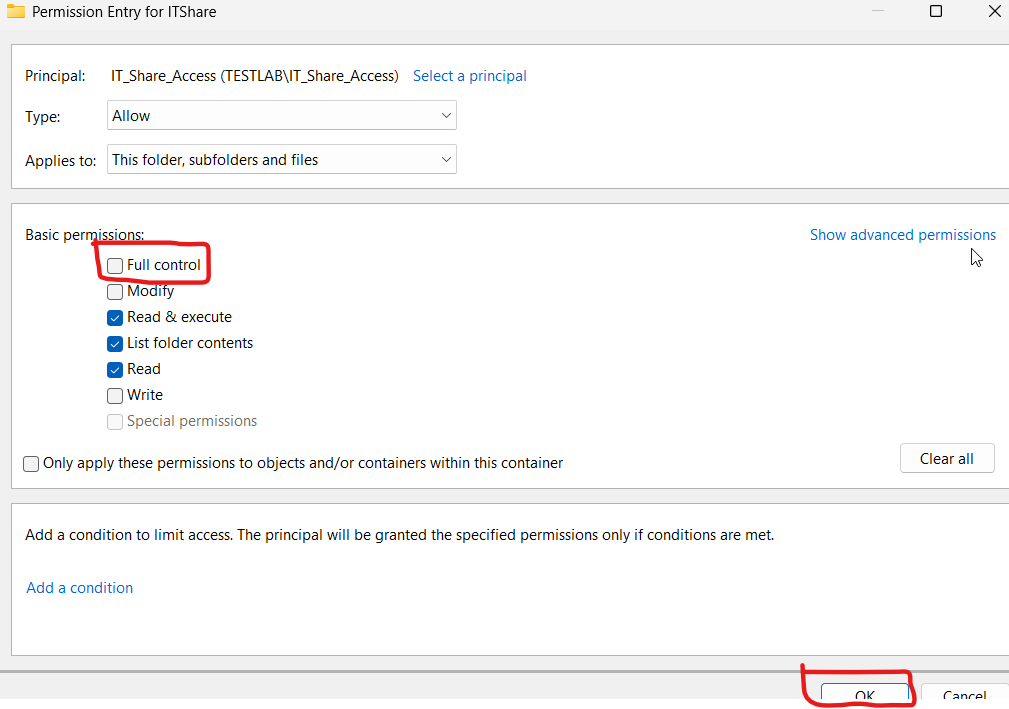
Assign the permissions you want them to have. Then click OK.
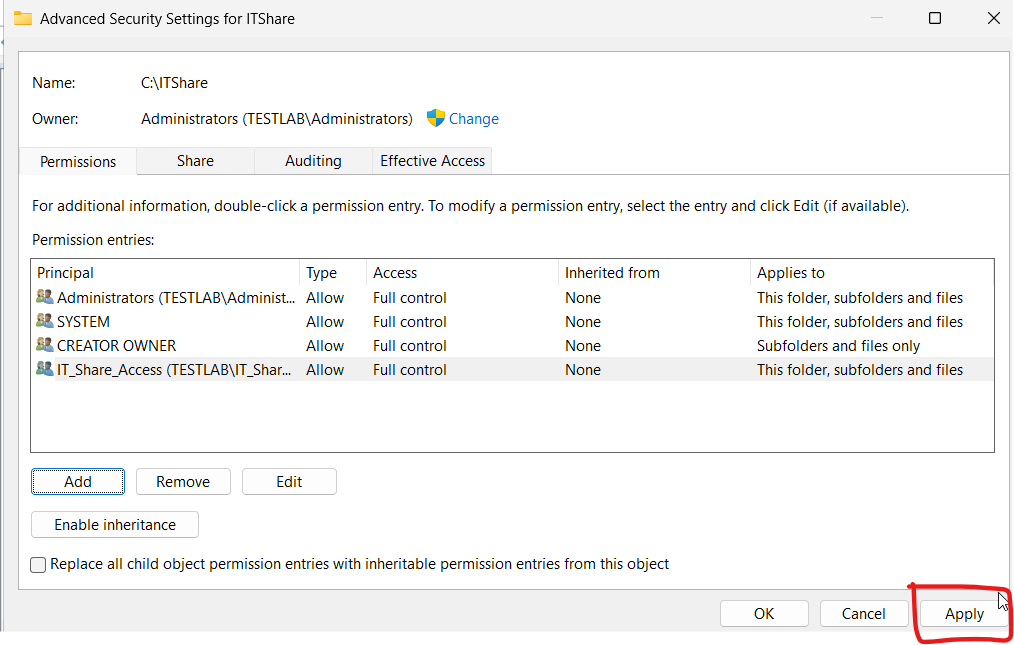
Click Apply.
Then we will test if our settings worked by signing in as a member of the security group that has access to the share and attempting to access the share.
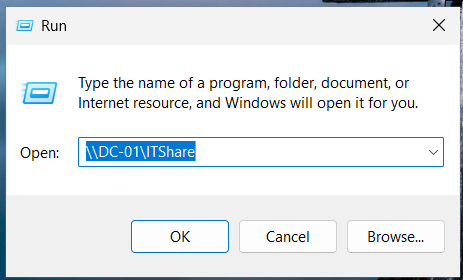
If this is a member of the security group they should be able to access the folder.
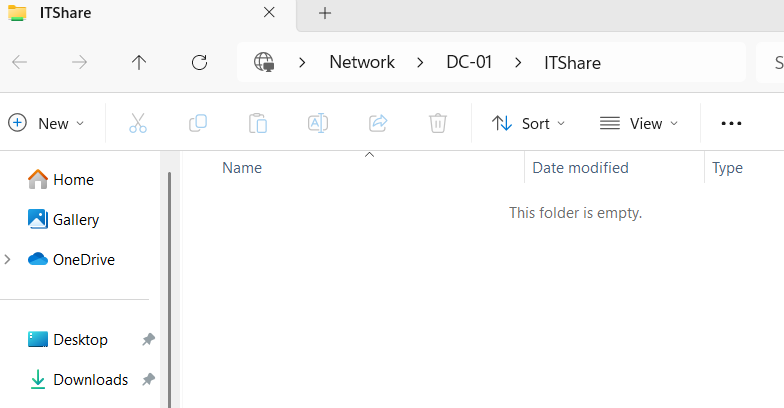
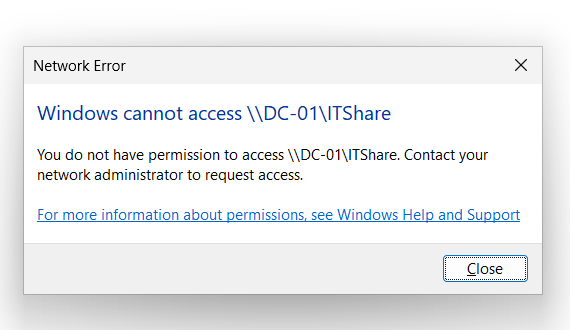
If they are not a member of the security group they should see something like this:
We created a shared folder, granted permissions to a security group to access the share, and tested that we were successful.